 By Naman Gundaniya
Local AI on Your Laptop: Ollama, LM Studio and Privacy
To run an LLM locally, install Ollama for a command line and local API, or LM Studio for a desktop app, download an open-weight model that fits your memory, and chat with it offline. A laptop with 16 GB of RAM runs small models well. Your prompts stay on the machine, as long as you leave cloud features off and keep the local server private.

Running a model on your own laptop used to be a hobby project. Now it takes about ten minutes, and for privacy-minded professionals it solves a real problem: you can summarise a confidential contract or draft a reply to a sensitive email without sending a word to anyone's servers. This guide covers the setup, the hardware maths and the privacy settings that actually matter.
Why run AI locally at all?
Local models trade some quality for control. The control is worth it in a few clear cases:
- Confidential material. Client documents, health or legal notes, unreleased financials, anything your contract or policy says cannot go to a third-party AI service.
- Offline work. Flights, trains and sites with poor connections.
- Predictable cost. No per-token bill for heavy, repetitive tasks such as tagging or rewriting.
- Building and testing. A local model behind an OpenAI-compatible API is a cheap way to develop AI features before you switch to a hosted model.
The trade-off is that a model small enough for a laptop is weaker than the frontier models behind cloud APIs, and slower on long answers. I explain where small models are good enough in small language models and on-device AI. In short: summarising, extracting, classifying and short drafting work well; long multi-step reasoning is where you notice the gap.
Ollama vs LM Studio: which should you install?
Both are free and both run open-weight models on your own hardware. The difference is how you use them.
| Ollama | LM Studio | |
|---|---|---|
| Main interface | Command line and local API | Desktop app with a chat window |
| Local API | http://localhost:11434, with OpenAI-compatible routes under /v1 | http://localhost:1234/v1, OpenAI-compatible |
| Best for | Developers, scripts, wiring into other tools | Non-developers, trying many models, chatting with documents |
| Use at work | Check the licence of each model you download | LM Studio's announcement says it is "free to use both at home and at work" |
| Cloud features | Optional cloud models and web search; can be switched off | Model search and downloads go online; chats stay local |
Sources: Ollama FAQ, Ollama OpenAI compatibility, LM Studio OpenAI compatibility.
If you want a chat window today, start with LM Studio. If you want to call a local model from code, start with Ollama. Many people end up with both.
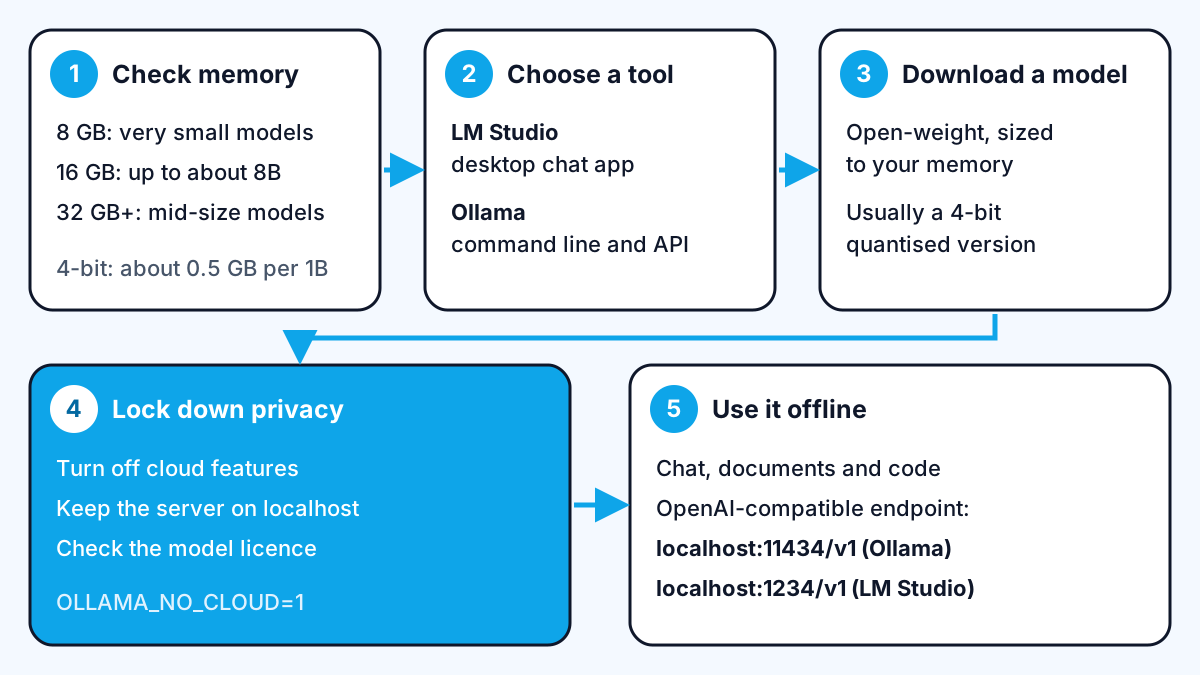
What hardware do you need to run an LLM locally?
Memory decides almost everything. The model's weights must fit in RAM (or in GPU memory on a PC with a separate graphics card), with room left for the conversation and your other apps.
LM Studio's system requirements say 16 GB or more of RAM is recommended on both macOS and Windows. On a Mac it needs Apple Silicon and macOS 14 or newer; on Windows, an x64 processor with AVX2 support or an ARM (Snapdragon X Elite) machine; on Linux, Ubuntu 20.04 or newer.
To estimate whether a model fits, use simple arithmetic. Most local models are downloaded in 4-bit quantised form, which means about half a byte per parameter:
- An 8-billion-parameter model at 4 bits is roughly 4 GB of weights.
- A 14-billion-parameter model at 4 bits is roughly 7 GB.
- A 32-billion-parameter model at 4 bits is roughly 16 GB.
Add a few gigabytes for the conversation context and leave room for your browser and operating system. In practice, a 16 GB laptop is comfortable with models up to around 8 billion parameters, and a 32 GB machine can try the mid-size ones. Download pages in both tools show the file size, which is a good proxy for the memory you need.
How to set up Ollama and LM Studio
LM Studio is the quicker route for most people:
- Install the app for your operating system.
- Open the Discover tab, search for a model, and pick a size your memory can hold.
- Load it and start chatting. To ask questions about a file, attach it to the chat; LM Studio's offline guide says "all document processing is done locally".
Ollama suits developers:
- Install Ollama, which runs a small server in the background.
- Run
ollama pullwith a model name to download it, thenollama runwith the same name to chat in the terminal. - Call it from code by pointing any OpenAI client at
http://localhost:11434/v1/. The compatibility docs note that the client needs an API key value but "Ollama ignores it", so any placeholder works.
One setting catches people out. The Ollama FAQ gives a default context length of 4,096 tokens, so long documents get cut off without warning. Raise it with the OLLAMA_CONTEXT_LENGTH environment variable, or num_ctx per request, if your memory allows.
Which model should you try first?
Start small and move up only if the answers are not good enough. A model that fits comfortably in memory answers faster and leaves your laptop usable, which matters more for daily work than a slightly better benchmark score.
A practical approach:
- Pick a well-known open-weight family in the 3 to 8 billion parameter range, in a 4-bit version.
- Give it five real tasks from your week, such as a summary, an extraction and a short draft.
- If it fails on the tasks you care about, try the next size up, or a model tuned for that job, such as one built for code.
- Keep one small, fast model for quick jobs and one larger model for harder ones, if your memory allows.
Both tools list a model's size before you download, so you can check the fit first.
The privacy settings that actually matter
Local does not automatically mean private. Check four things before you put confidential material into either tool.
1. Turn off cloud features you do not use. Ollama now offers cloud-hosted models and web search alongside local ones. Its FAQ says that in local mode it does not see your prompts, and that cloud prompts are processed to provide the service but not stored or used for training. If you want a guarantee that nothing leaves the laptop, disable cloud features: set OLLAMA_NO_CLOUD=1 or add "disable_ollama_cloud": true to ~/.ollama/server.json, then restart.
2. Keep the server on localhost. Ollama listens on 127.0.0.1:11434 by default, which only your own machine can reach. Changing OLLAMA_HOST to 0.0.0.0 exposes it to your network, and anyone who can reach it can use your model and see what it is asked. Only do that behind a firewall you control.
3. Know what goes online. LM Studio's offline guide says "nothing you enter into LM Studio when chatting with LLMs leaves your device", but model search, catalogue stats, downloads and app updates do make network requests. Download models first, then work offline if you want certainty.
4. Check the model licence. Open-weight models come with their own licences, and some restrict commercial use. Read the licence on the model page before using it for client work.
If you run a team, write these rules down. Which local tools are approved, which models, and what data may go into them belongs in your AI usage policy. And if the same work later moves to a cloud model, the controls change; I cover those in securing LLM apps in the cloud.
What local models are good for, in practice
In my own work I treat a local model as a private assistant for narrow tasks, not a replacement for a frontier model. The jobs that suit it:
- Summarising and extracting fields from confidential documents.
- Rewriting and tidying text that should not leave the machine.
- Classifying or tagging batches of records where a per-token bill would add up.
- A free development endpoint while building an AI feature, before switching to a hosted model.
For long reasoning, complex code changes or anything customer-facing, I still use the strongest hosted model that the client's data rules allow.
Work with me
If you want AI on confidential data, either running locally or on a cloud set up to your security team's standards, I can help you choose the setup and build it into your workflow. See AI integration and full-stack development, or browse my work.
Frequently asked
Can I run an LLM locally without a GPU?
Yes. Ollama and LM Studio both run models on an ordinary laptop's processor and memory, and Apple Silicon Macs use their unified memory for this. A dedicated GPU makes responses faster, but a small quantised model runs acceptably on a modern laptop with 16 GB of RAM.
Is Ollama or LM Studio better?
Neither is better overall. LM Studio is easier for non-developers because it is a desktop app with a chat window and document chat, while Ollama suits developers who want a command line and a local API. Both expose an OpenAI-compatible endpoint.
Is running AI locally completely private?
Running AI locally is private if prompts never leave your machine. With a downloaded model, chats in both tools stay local, but model downloads go online, Ollama's optional cloud models send prompts to its servers, and exposing the local server to your network lets others use it.
How much RAM do I need to run an LLM locally?
Plan for about half a gigabyte of memory per billion parameters for a 4-bit model, plus a few gigabytes for context and your operating system. LM Studio recommends 16 GB or more, which comfortably runs models up to around 8 billion parameters.
Sources
Related services
Building something like this?
Naman Gundaniya takes on full-stack and AI projects fixed quote after a free 30-minute scoping call, replies within 24 hours.
Get in touch